To edit reels with AI, split the work into three jobs. For raw footage, AI writes the transcript, cuts the silences and adds subtitles and an end card. For long videos, a clip tool cuts vertical clips. For a reel that worked, you make variants and test them as Instagram trial reels. A person picks the cut and checks every file before it goes live.
Key takeaways
- Three jobs: edit raw footage into a reel, cut long videos into vertical clips, and test variants of a reel that worked.
- Length: Instagram accepts reels up to 20 minutes, but it does not recommend reels over 3 minutes to new audiences.
- Trial reels: you need a public account with at least 200 followers (professional) or 1,000 (personal), and insights arrive within 24 hours.
- Labels: Meta may require an AI label on reels with realistic AI video or audio, such as a realistic AI voiceover.
- Delivery: every reel file we ship is H.264 with fast start, loudness near -14 LUFS and captions inside a safe zone.
- Bottom line: let AI do the cutting, subtitles and variants, and keep a person on the choice of moment and the final check.
AI reel editor: three jobs for recorded footage
An AI reel editor makes short vertical videos for Instagram Reels and YouTube Shorts from footage you recorded. It does three jobs. It edits raw footage into one reel, it cuts a long video into several vertical clips, and it makes variants of a reel that worked so you can test them. Each job has its own tools and its own checks.
This guide is for a marketing team or a founder who records talks, demos or webinars and wants more reels from them each week. When several people and accounts share the work, read our guide to AI video editing agents.
The table shows the three jobs, the tools for each and the part a person keeps.
| Job | What AI does | Tools | What a person keeps |
|---|---|---|---|
| Edit raw footage into one reel | Writes the transcript, cuts silences, adds subtitles, colour, sound levels and an end card | An app editor such as Edits, or Claude Code with FFmpeg and Whisper | The story order, the first 3 seconds and the final check |
| Cut a long video into vertical clips | Finds moments, cuts them and reframes them to 9:16 around the speaker | A clip tool such as OpusClip, the Clips and Shorts tool in YouTube Studio, or a Claude Code pipeline | Which moments make sense alone, and the facts in each clip |
| Make variants of a reel that worked | Makes new versions with another opening, length, caption or end card | The same editor, then Instagram trial reels for the test | Which change to test, and which result counts |
Instagram Reels and YouTube Shorts specs
Make every reel vertical. We make ours at 9:16 and 1080 x 1920 pixels. Instagram accepts reels up to 20 minutes, but it does not recommend reels over 3 minutes to new audiences. YouTube treats square or vertical uploads of up to 3 minutes as Shorts. So keep any reel that should reach new people at 3 minutes or less.
Instagram’s help page says your clips can add up to 20 minutes, and that reels over 3 minutes won’t be recommended to new audiences. Length decides who can find a reel, so choose it before you edit.
On YouTube, square or vertical videos of up to 3 minutes count as Shorts for uploads since 15 October 2024. A Short over 1 minute with an active Content ID claim of any type is blocked worldwide until the claim is resolved. Check the music rights of every Short longer than a minute.
Reels ads follow Meta’s ads guide: 9:16, H.264 video, a recommended size of 1440 x 2560 pixels and up to 15 minutes.
| Spec | Instagram Reels | YouTube Shorts | Instagram Reels ads |
|---|---|---|---|
| Shape | Vertical (our files: 9:16) | Square or vertical | 9:16 |
| Longest video | 20 minutes | 3 minutes | 15 minutes |
| Rule to know | Reels over 3 minutes are not recommended to new audiences | Shorts over 1 minute with a Content ID claim are blocked | Keep 14% top, 35% bottom and 6% each side free of text |
| Video settings | Our files: H.264, 1080 x 1920 | Our files: H.264, 1080 x 1920 | H.264, 1440 x 2560 recommended |
Steps to edit reels with AI from raw footage
To edit raw footage with AI, make the transcript first, because every later step reads it. Then cut the silences and false starts, add subtitles from the transcript, set the colour and the sound, and add an end card with one ask. A person watches the result before it goes anywhere. An app does this for one reel; Claude Code does it for many files at once.
Raw footage to reel
Updated November 2026levercrew
Five steps from raw footage to a reel, with a person last
One reel, from recording to file
- Write the transcript Every word with its time
- Cut the silences Pauses and false starts
- Add the subtitles From the checked transcript
- Sound and end card One ask at the end
- A person checks Before it goes live
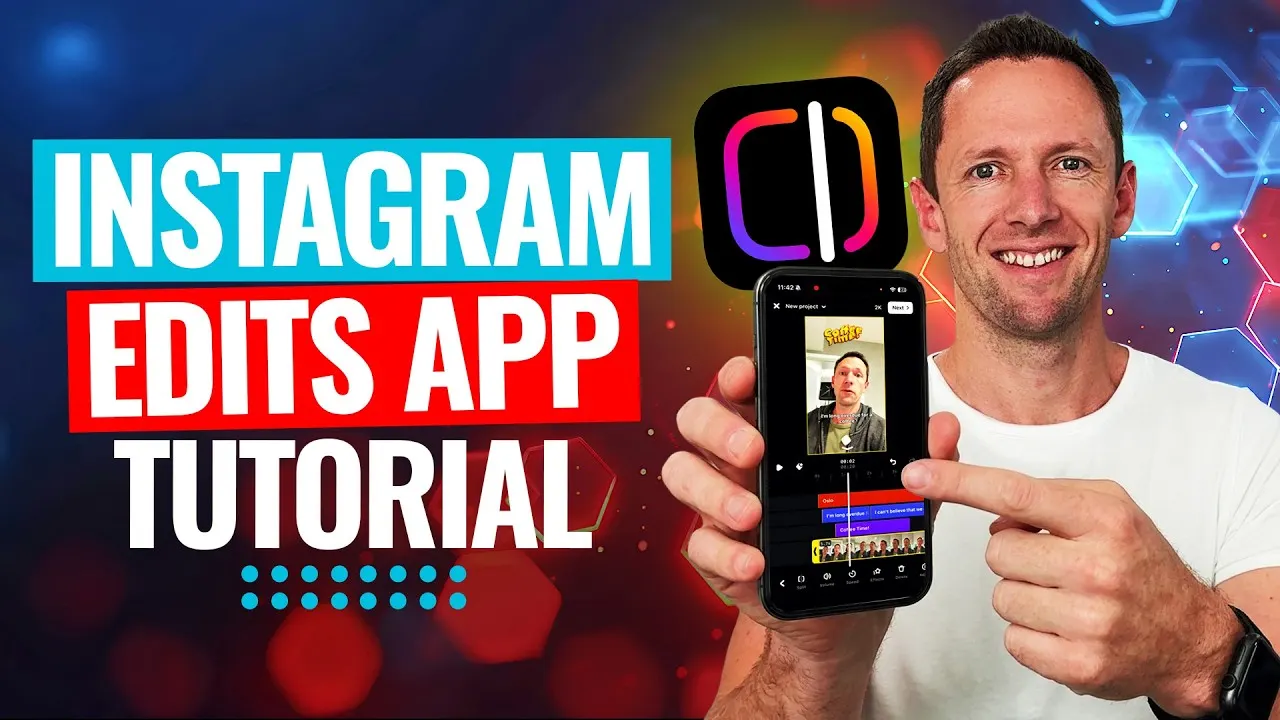
The app route suits one reel at a time. Edits, Instagram’s own video app for iOS, Android and Mac, has a timeline with clip-level precision, auto-enhance tools, green screen and exports with no watermark. You sign in with your Instagram account. The video at the end of this section shows Edits from recording to export.
The pipeline route suits a team that makes many reels in one style. Whisper, OpenAI’s speech recognition model under the MIT licence, writes the transcript with timings and saves it as an SRT or VTT subtitle file. FFmpeg, the multimedia framework, finds pauses with its silencedetect filter and draws subtitles onto the video with its subtitles filter.
Claude Code connects these tools. It reads your project folder, edits files and runs commands, so it can run Whisper and FFmpeg on a folder of clips from one written instruction. It needs a paid Claude plan, such as Pro or Max. A render framework such as Remotion or HyperFrames draws the subtitles and end cards. HyperFrames needs Node.js 22 or later and FFmpeg, and Remotion’s free licence covers individuals and companies of up to 3 people. Our guide to Claude video editing covers that setup.
On either route, check by eye that the first 3 seconds show the point, and that every subtitle matches the spoken words. A speech model can mishear names and product terms.
AI Shorts generators: long videos into vertical clips
To cut a long video into vertical clips, use a clip tool, YouTube Studio or a Claude Code pipeline. Each one finds moments in the transcript, cuts them and reframes them from a wide frame to 9:16 around the speaker. Your job is to choose the moments that make sense without the rest of the video, and to check the facts in each clip.
OpusClip is a clip tool for this job. Its site says it makes short clips from a long video, reframes them to 9:16 while it follows speakers, adds animated captions and gives each clip a score for its viral potential. You can also ask for a moment in plain words.
If the long video is already on your YouTube channel, YouTube Studio has a Clips and Shorts tool. You open the video, choose Clips and Shorts, and pick the segment by selecting words in the transcript or by typing timestamps. YouTube adds captions where available and links the Short to the source video, unless the Short is private, unlisted or made for kids. AI-suggested moments work in some countries, Spain among them.
A Claude Code pipeline does the same job on your own computer. Whisper writes the transcript, Claude reads it and proposes moments with start and end times, and FFmpeg cuts and crops each one. You approve the list of moments before any file is made.
A good clip has one point, starts on that point and ends when the point is made. Cut questions that the speaker answers later in the video, slides a viewer cannot read on a phone, and lines such as “as I said before”.
Instagram trial reels for testing reel variants
Trial reels let you test a reel with people who do not follow you before your followers see it. You need a public account with at least 200 followers for a professional account, or 1,000 for a personal one. Insights arrive within 24 hours. If the reel performs well, you share it with everyone, by hand or automatically.
Trial reels on Instagram
Updated November 2026levercrew
A professional account needs 200 followers for trial reels, a personal one 1,000
Followers you need
0 followers 1,200 followers
After you share a trial
- Hour 0 Share with Trial on
- Within 24 h Insights arrive
- After insights Share to everyone
Public accounts only. An account that cannot appear in recommendations loses trial reels until it can again.
Instagram’s help page sets two more conditions. Your account must be able to appear in recommendations; Account Status in your settings shows any limits on your reach. And the trial must be a new reel: a trial may get limited reach if Instagram detects that you shared the same content before. So each variant needs a real change.
To post one, tap Trial before you share the reel. Followers do not see a trial in their feed or Reels tab, and it does not appear on your profile, though some can still see it in a direct message.
Within 24 hours you see views, likes, comments and shares. To share a winner, tap View insights, then Share to everyone. With Share to everyone automatically turned on, Instagram shares a trial that performs well soon after you publish it. Trial reels are ranked on their own, so a weak trial does not affect your standard reels.
Change one thing per variant, so the result tells you what worked: the opening line, the first frame, the length, the caption or the end card. Keep the rest the same. Trial reels may take longer to get views, because Instagram shows them to people who do not follow you, so compare variants after the same number of hours.
AI labels on reels: Meta rules and the EU AI Act
Cuts, subtitles and colour edit footage of things that really happened. Labels matter when AI adds realistic video or audio that did not happen, such as an AI voiceover, a cloned voice or a changed face. Meta may require an AI label on those reels. In the EU, Article 50 of the AI Act has applied since 2 August 2026.
Meta’s help page says it may require an AI label on Facebook, Instagram and Threads when content has photorealistic video or realistic-sounding audio that was digitally created, modified or altered, including with AI. Its examples include a reel narrated with a realistic AI-generated voiceover. The rule does not apply to images. Meta says there may be penalties for content shared without a required label.
Meta also reads industry-standard signals in files. Content made with AI gets a label on the post; content only modified with AI shows it in the options menu.
Under AI Act Article 50(4), you disclose deep fakes. The AI Act defines a deep fake as AI image, audio or video that resembles real people, objects, places, entities or events and would falsely appear authentic. For clearly artistic, creative, satirical or fictional work, a disclosure that does not disturb the work is enough. Paragraph 50(5) asks for the information at the latest at the first exposure, so put the disclosure on the reel itself.
Paragraph 50(2) puts a second duty on the companies that make AI tools: their output must be marked in a machine-readable way. The AI Act Service Desk timeline gives tools already on the market before 2 August 2026 until 2 December 2026. This guide is not legal advice, so check your own case with your lawyer.
- A realistic AI voice or a cloned voice: use the AI label when you share.
- A changed face or a generated scene that looks real: use the AI label.
- In the EU, a deep fake also needs a clear disclosure on the reel itself.
- When you are unsure, add the label.
Delivery checklist for every reel file
Before a reel file leaves our team, it passes seven machine checks and one human check. The machine checks cover the video format, the size, fast start, loudness, the caption position, the audio fades and the first second of sound. The list below gives each value. A person then watches the reel once with the sound off.
Caption safe zone
Updated November 2026levercrew
Captions sit 220 px below the top and 420 px above the bottom
A 1080 x 1920 reel frame
Our house rule for organic reels, from our delivery checks. Reels ads need more room.
Fast start puts the index of an MP4 file at its beginning, which FFmpeg’s documentation says gives better playback. The -14 LUFS target is our own house level, so reels in a series play at the same level. FFmpeg’s loudnorm filter sets loudness to the EBU R128 standard, and its afade filter makes the 15 ms fades.
Our caption zone is for organic reels. For Reels ads, Meta recommends more room: 14% at the top, 35% at the bottom and 6% on each side. On a 1080 x 1920 frame, that is about 269 pixels at the top, 672 at the bottom and 65 on each side.
Scripts run the seven checks. A person checks what no script can: whether the reel makes sense to someone who sees it once on a phone.
- Video: H.264 that QuickTime opens.
- Size: 1080 pixels wide or more, 1080 x 1920 for a reel.
- Fast start: the index at the start of the file.
- Loudness: near -14 LUFS.
- Captions: clear of the top 220 px and the bottom 420 px.
- Audio edges: a 15 ms fade in and a 15 ms fade out.
- First second: no noise before the first word.
Reels at LeverCrew: CreatorFlow and RNJ Transport
We use the same three jobs and checks in our own company and for clients. CreatorFlow, the SaaS company one of our founders runs, published 6 Instagram Reels and 26 Stories from 5 to 15 November 2026. We have not recorded results for those reels yet, so we claim none.
For CreatorFlow, we also made 15 Shorts and 8 product page videos. The whole project is on the CreatorFlow case page.
For RNJ Transport, a road freight company in Lithuania, we made 20 LinkedIn videos, 10 in English and 10 in Lithuanian, at 1080 x 1350 pixels and 18 to 26 seconds each. We also made YouTube promo films and Shorts. That work is part of a website and brand revamp, which covers the company’s LinkedIn and YouTube presence.
When we make AI content for ads and sales, we define the buyer and the angle first, then cut the footage and the variants that test it.
Common questions
What is the best AI reel editor?
Pick by job. For one reel from your phone, use an app editor such as Instagram’s Edits app. For clips from long videos, use a clip tool such as OpusClip or YouTube Studio’s Clips and Shorts tool. For many reels in one style, use a Claude Code pipeline with FFmpeg and Whisper.
Can AI edit a reel from raw footage?
Yes, for the mechanical part. AI writes the transcript, cuts silences, adds subtitles, sets the loudness and adds an end card. A person still chooses the order, the opening and the ask, and checks names in the subtitles.
How long should an Instagram Reel be?
Instagram accepts reels up to 20 minutes, but it does not recommend reels over 3 minutes to new audiences. YouTube treats square or vertical uploads of up to 3 minutes as Shorts. Keep any reel that should reach new people at 3 minutes or less.
Who can use Instagram trial reels?
You need a public account that can appear in recommendations. A professional account needs at least 200 followers, and a personal account needs at least 1,000. Account Status in your settings shows any limits on your reach.
Do I have to label a reel edited with AI?
Meta may require an AI label when a reel has photorealistic video or realistic-sounding audio that was created or changed digitally, including with AI, such as a realistic AI voiceover. In the EU, AI Act Article 50(4) asks you to disclose deep fakes since 2 August 2026. Check your own case with your lawyer.
How do I make Shorts from a long YouTube video?
In YouTube Studio, open the video, choose Clips and Shorts, and create a Short. You pick the segment by selecting words in the transcript or by typing timestamps. YouTube adds captions where available and links the Short to the source video, unless the Short is private, unlisted or made for kids.
What file settings does a reel need?
Our reel files are H.264 at 1080 x 1920 pixels, with fast start and loudness near -14 LUFS. Captions stay clear of the top 220 and the bottom 420 pixels. For Reels ads, Meta recommends 9:16 and H.264 at 1440 x 2560 pixels.
Sources and checks (19)
- Instagram Help Center: Record a reel on Instagram (checked November 2026)
- Instagram Help Center: About trial reels on Instagram (checked November 2026)
- Edits by Instagram: the video editing app for creators (checked November 2026)
- YouTube Help: Understand three-minute YouTube Shorts
- YouTube Help: Video clips and Shorts in YouTube Studio (checked November 2026)
- Meta Ads Guide: video ad specs on Instagram Reels (checked November 2026)
- Meta Help Centre: How to identify AI content on Meta products (updated November 2026)
- European Commission, AI Act Service Desk: Article 50, transparency obligations
- European Commission, AI Act Service Desk: Article 3, definitions (deep fake)
- European Commission, AI Act Service Desk: implementation timeline (checked November 2026)
- OpenAI Whisper on GitHub: speech recognition model and MIT licence
- OpenAI Whisper on GitHub: command line options, including SRT and VTT output
- FFmpeg filters documentation: silencedetect, subtitles, loudnorm and afade
- FFmpeg formats documentation: MP4 and MOV fast start
- Claude Code documentation: overview
- Claude Help Center: use Claude Code with your Pro, Max, or Ultra plan (checked November 2026)
- Remotion: license (checked November 2026)
- HyperFrames by HeyGen on GitHub: requirements and licence (checked November 2026)
- OpusClip: AI clipping tool (checked November 2026)