Guide
How to install and use Claude skills in every app
To install a Claude skill in the Claude app, zip the skill folder and upload it in Customize > Skills, with code execution turned on. In Claude Code, copy the folder into ~/.claude/skills or into a project’s .claude/skills, or install a plugin with /plugin. Then describe your task, or type / and pick the skill. Read every file before you install it.
$ npx skills add coreyhaines31/marketingskills --skill seo-audit
✓ Found 1 skill: seo-audit
✓ Installed in .claude/skills/seo-audit/
.claude/
skills/
seo-audit/
SKILL.md
Ready: Claude uses it when a task needs it
Key points
- The Claude app takes a ZIP file with the skill folder at its top level.
- Claude Code reads ~/.claude/skills for all your projects and .claude/skills for one project.
- Cowork loads the skills on your claude.ai account, not the ~/.claude folder on your computer.
- The npx skills add installer puts one skill into Claude Code, Codex, Cursor and 75 more agents.
- ChatGPT, Codex and Cursor read the same SKILL.md format as Claude.
- A skill runs instructions and scripts, so read it before you turn it on.
How to install a skill in the Claude app
In the Claude app, you install a skill by uploading it as a ZIP file. Open Customize > Skills, select +, then Create skill and Upload a skill. The ZIP must hold the skill folder itself, with SKILL.md inside it, not the loose files. Skills run in Claude’s code sandbox, so code execution and file creation must be on in Settings > Capabilities.
Claude app upload
Updated November 2026levercrew
Four steps from a skill folder to a skill Claude uses
Upload in the Claude app
- Zip the folder The folder at the ZIP’s top level
- Customize > Skills Select +, then Create skill
- Upload a skill Choose the ZIP file
- Turn it on Then describe your task
The usual mistake: zipping the files inside the folder. Claude looks for my-skill/SKILL.md in the archive.
On Team plans, skills are on for the organisation by default. On Enterprise plans, an owner turns them on first. Owners can also upload a skill for everyone. Members can share their own skills with colleagues or publish them to the organisation’s library. A skill someone shares with you stays off until you turn it on.
- Turn on code execution and file creation in Settings > Capabilities.
- Zip the folder from the folder above it:
zip -r my-skill.zip my-skill/. - Open Customize > Skills, select +, then Create skill.
- Select Upload a skill and choose the ZIP file.
- Turn the skill on in your list.
How to add skills in Claude Code
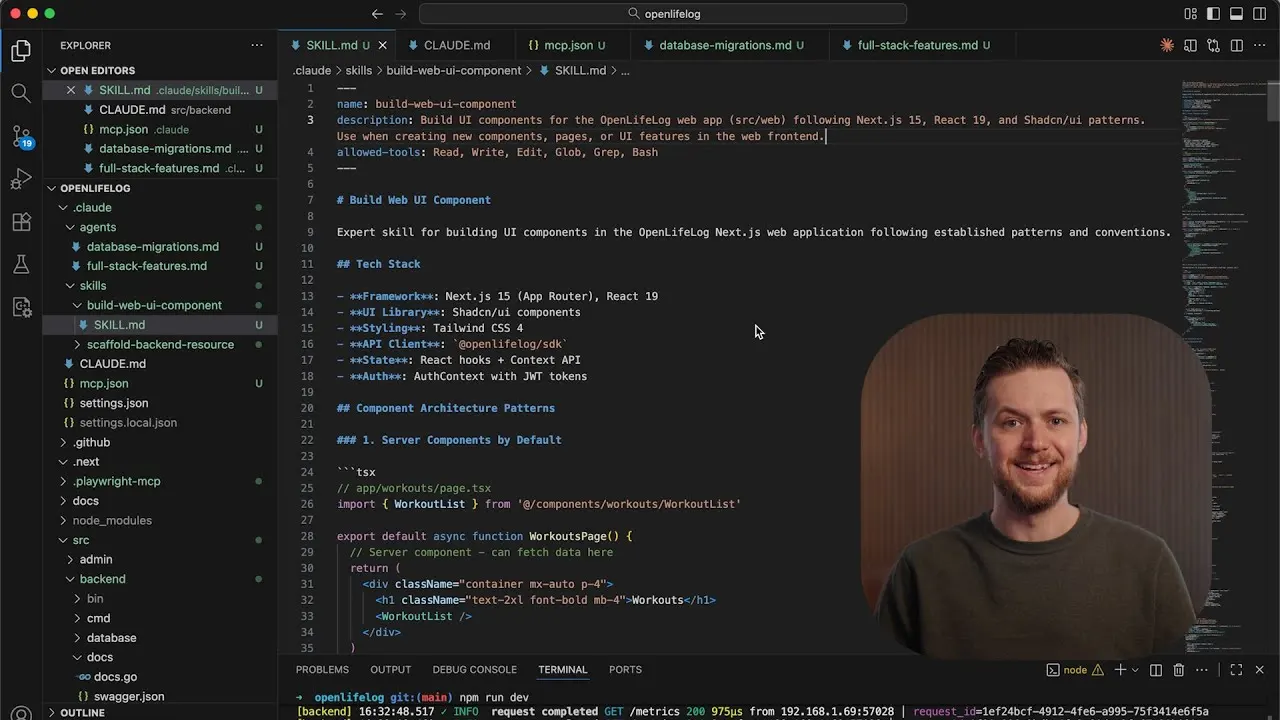
Claude Code reads skills from folders on your computer. Put a skill in ~/.claude/skills/my-skill/ to use it in every project, or in .claude/skills/my-skill/ inside a repository to use it there and share it through git. A plugin from the /plugin menu installs a set of skills at once. Claude Code picks up new skill folders during the session.
When you sign in with your claude.ai account, Claude Code also loads the skills you turned on in the Claude app. Run /skills to see them under claude.ai sync. Plugin skills run as /plugin-name:skill-name, so two plugins can each have a skill with the same name.
Steps and the skills that suit the terminal: Claude skills in Claude Code.
- Copy the skill folder so the file sits at
~/.claude/skills/my-skill/SKILL.md. - For one project only, use
.claude/skills/in the repository and commit it. - For a plugin, add its marketplace with
/plugin marketplace add owner/repo. - Install it with
/plugin install plugin-name@marketplace-name. - Run
/skillsto see what loaded. If a new skill is missing, run/reload-skills.
How to use Claude skills in Cowork
Cowork loads the skills turned on for your claude.ai account when a session starts. It does not read the ~/.claude folder on your computer, so a skill that lives only there does not appear. Add the skill in Customize, the same page as in the Claude app, as an uploaded ZIP or inside a plugin.
To add a plugin, open Customize in the sidebar, select Plugins, then Discover, and install it. You can also add a GitHub repository as a marketplace with its owner/repo short name. One plugin can add skills, connectors, agents and hooks in one step. Type /plugin-name:command to run one of its commands, or describe the task and let Claude pick the skill.
More on Cowork: Claude skills in Cowork.
How to install skills with npx skills add
npx skills add is a free command-line installer from Vercel Labs. It copies skills from a GitHub repository into the folders your coding agents read, so one command covers Claude Code, Codex, Cursor and 75 more agents. It needs Node.js 22.20 or later. It installs into the current project by default, and -g installs for all your projects.
Install routes by app
Updated November 2026levercrew
Chat apps take uploads; coding tools read folders on your computer
Ways to add a skill
Works Main way
ChatGPT skills need a Business, Enterprise, Healthcare or Edu plan. In Cowork you upload from Customize.
Every skill page in this directory shows its exact npx line. The installer lists the skills in a repository and asks which ones to install and for which agents.
- Open a terminal in your project folder.
- Run
npx skills add owner/repoand pick the skills and agents from the list. - For one skill in Claude Code only:
npx skills add owner/repo --skill name -a claude-code. - Add
-gto install it for all your projects. - Check with
npx skills list, update withnpx skills update, remove withnpx skills remove.
How to install Claude skills in ChatGPT, Codex and Cursor
ChatGPT, Codex and Cursor follow the same open Agent Skills format as Claude, so most skill folders work there without changes. ChatGPT takes an upload on its Skills page on Business, Enterprise, Healthcare and Edu plans. Codex and Cursor read skill folders on your computer, and Cursor also reads Claude’s .claude/skills folders. Skills that run scripts need an app that can run code.
ChatGPT scans each uploaded skill before you can use it, and it can mark one Needs Review or Blocked. Codex has a built-in $skill-installer for curated skills. Full steps per app: ChatGPT, Codex and Cursor.
| App | Where skills go | How you call one |
|---|---|---|
| ChatGPT | Sidebar > Plugins > Skills tab > Add > Upload from your computer | Type @ and pick the skill, or describe the task |
| Codex | .agents/skills in a repository, or ~/.agents/skills for all your work | Type $ and the skill name, or run /skills |
| Cursor | .agents/skills or .cursor/skills in a project, ~/.cursor/skills for you, and .claude/skills | Type / in Agent chat and pick the skill |
How to use a skill and check that it loaded
Once a skill is on, describe your task in plain words and Claude loads the skill whose description matches. To pick one yourself, type / in the message box of the Claude app, or type /skill-name in Claude Code. To check that it loaded, look for the skill in Claude’s thinking in the app, or run /skills in Claude Code.
When Claude does not pick a skill, the description usually lacks the words your request uses. How to write one that works: create a Claude skill.
- Claude app: the skill is in Customize > Skills with its switch on.
- Claude Code: ask “What skills are available?” or run
/skills. - Claude Code:
claude plugin validate ~/.claude/skillsfinds a SKILL.md whose header does not parse. - Still missing: call the skill by name, then add the words people use for the task to its description.
How to install a Claude skill safely
Install skills only from sources you trust, and read every file first. A skill’s instructions and scripts run as part of your work, and Anthropic does not review skills you upload or get from a colleague. In Claude Code and Cowork, scripts can run on your own computer. In the Claude app, they run in Claude’s code sandbox.
Before you turn it on
Updated November 2026levercrew
Read the files first, because skills can run code
Main risks
- Prompt injection in the instructions
- Data leaks through package code
- Calls to untrusted servers
What to read
- SKILL.md, line by line
- Every script and its packages
- Images and other bundled files
Anthropic names two main risks: prompt injection, where hidden text makes Claude do something you did not ask for, and data leaks through package code or injected instructions.
- Read SKILL.md and every file in scripts/ before you turn the skill on.
- Check code dependencies, bundled files and any link to an outside server.
- Never put API keys or passwords in a skill: everyone you share it with gets its files.
- In Claude Code, a script asks for your permission unless the skill pre-approves the tool.
Questions
Frequently asked questions
Why does my uploaded skill not appear?
Most often the ZIP holds the files, not the folder. Claude looks for my-skill/SKILL.md inside the archive. Zip the folder from the folder above it, check the list with `unzip -l my-skill.zip`, and make sure code execution is on.
Do I need code execution turned on?
Yes, in the Claude app. Skills run in Claude’s code sandbox, so turn on code execution and file creation in Settings > Capabilities. On Team and Enterprise plans, an owner turns it on for the organisation.
Do skills from the Claude app work in Claude Code?
Yes, when you sign in to Claude Code with the same account. Claude Code downloads them when a session starts and lists them under claude.ai sync in /skills. Skills you add from the Claude Code command line stay on that computer.
How many skills can I install?
The docs set no fixed number, but each skill adds its name and description to every turn. In Claude Code the list gets 1% of the context window, and with many skills it drops the descriptions you use least. Turn off skills you do not use.
How do I remove a skill?
In the Claude app, open it in Customize > Skills, turn it off, then pick Delete in its three-dot menu. In Claude Code, delete its folder from ~/.claude/skills or .claude/skills, or uninstall the plugin that added it.
Which skill should I install first?
The one for the job your team repeats most. The Claude skills directory sorts 97 skills and plugins by job, and skill-creator helps you write your own.
Sources (11)
- Claude Help Center: Use skills in Claude
- Claude docs: Skills overview
- Claude docs: Create custom skills (packaging and testing)
- Claude docs: Connectors, skills, and plugins
- Claude docs: Install plugins in Cowork
- Claude docs: Cowork overview
- Claude Code docs: Extend Claude with skills
- vercel-labs/skills: README of the skills installer
- OpenAI Help Center: Skills in ChatGPT
- OpenAI Codex docs: Build skills
- Cursor docs: Agent Skills
We set it up with your team
Book a free 30-minute call. We install the skills you need, write your own and train your team to use them.
Book a discovery call